1. Why Happy Horse 1.0 Fits Today’s Short-Video Workflow
Short videos move fast, but making them from scratch can still feel slow. You need a concept, a visual, motion, timing, music, and enough polish to make people stop scrolling. That is where HappyHorse AI becomes useful for creators who want to turn a still image into a moving clip without building a full editing timeline.
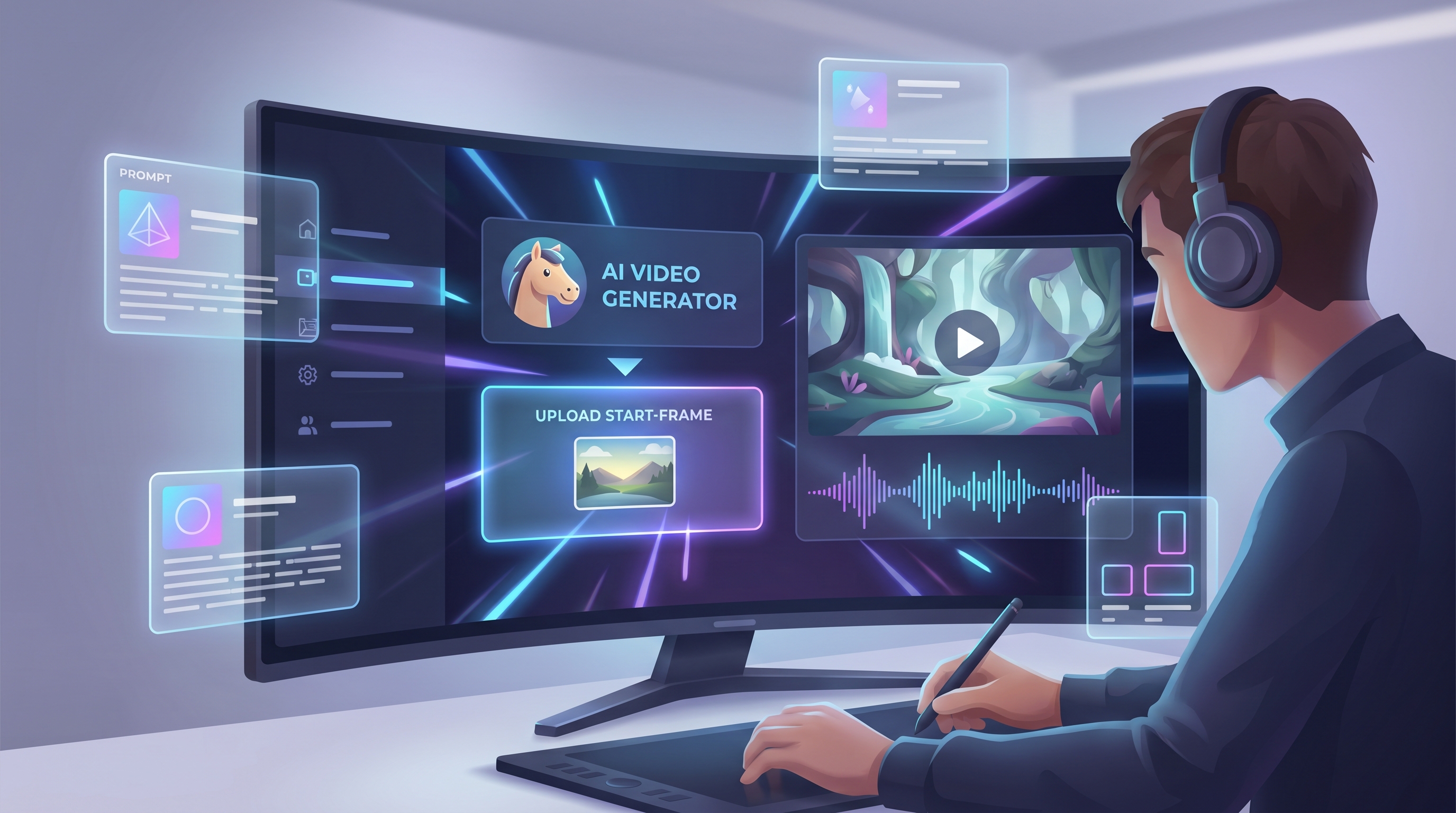
The idea is simple: upload a start frame, describe what should happen, choose basic output settings, and generate a short AI video with motion and audio. Instead of treating AI video as a complicated production tool, AIFacefy presents it like a creator workspace: image on the left, prompt box below it, options for resolution, duration, ratio, and a preview/history area on the right.
For content creators, this matters because the first version does not need to be perfect. You can use one product image, portrait, character design, fashion look, or campaign visual as the base, then test several motion ideas. One clip may become a TikTok hook. Another may become a product teaser. A third may become the moving background for an ad, reel, or landing page.
2. How to Use Happy Horse 1.0 on AIFacefy
Step 1: Start with the image
A clean start frame gives the model a stronger visual anchor, so avoid messy backgrounds, tiny subjects, or low-resolution screenshots. If you are animating a person, choose an image where the face, body, and clothing are clear. If you are animating a product, make sure the shape and label are easy to recognize.
Step 2: Open the tool and upload your image
Open Alibaba HappyHorse on AIFacefy and upload your image into the Start Frame area. Before writing the prompt, decide the purpose of the clip. Is it a cinematic product shot? A fashion reveal? A cozy travel memory? A dramatic character close-up? The clearer your goal is, the easier the prompt becomes.
Step 3: Write the prompt like a small director’s note
A useful order is: subject → action → camera movement → environment → visual style → audio feeling.
For example, instead of writing “make this cool,” write: “The subject slowly turns toward the camera while soft neon lights move in the background. The camera gently pushes in. Cinematic lighting, smooth motion, subtle ambient electronic music.”
Step 4: Adjust the output settings
Use a vertical ratio for TikTok, Reels, and Shorts. Use a horizontal ratio for YouTube, website banners, or ad previews. Keep the duration short when testing, because a five-second result is easier to review and revise. After generation, check the video history, compare versions, and reuse the best prompt structure for the next attempt.
3. Practical Tips for Cleaner Motion and Better Results
The biggest secret is focus. The HappyHorse 1.0 workflow performs best when the prompt gives the model one clear movement instead of five competing ideas. A person can smile, turn, walk, raise a hand, or look away. A product can rotate, catch light, release steam, or sit in a moving environment. A scene can have drifting rain, floating dust, moving sunlight, or a gentle camera push.
Camera language also helps. Phrases like “slow push-in,” “gentle pan,” “soft orbit,” “static camera,” or “handheld but stable” are more useful than vague words like “dynamic” or “epic.” They tell the model how the viewer should experience the clip.
Audio should be described in mood-based terms. Try phrases such as “soft cinematic music,” “light café ambience,” “gentle wind,” “subtle bass hit,” “camera shutter sound,” or “warm piano.” Even when the final result is not used as the finished audio track, this gives the generation a stronger emotional direction.
For face or product consistency, add protective language. You can write “preserve the person’s face, outfit, and identity” or “keep the product shape, logo, and color consistent.” This is especially important when your image contains a real person, a branded item, or a campaign asset.
4. Best Use Cases for Creators, Brands, and Social Posts
Social creators
The HappyHorse model is especially useful when you already have a strong still image but need it to feel alive. For social creators, it can turn selfies, profile images, AI avatars, pet photos, and fashion shots into short motion clips. A small head turn, natural smile, or background light movement can make a static post feel more native to video platforms.
Brands
For brands, the tool can help create product teasers before a full ad is produced. A cosmetic bottle can catch moving light. A sneaker can rotate in a dark studio scene. A drink can show rising steam or condensation. These simple motions are often enough for a product reveal, preorder post, or paid ad variation.
Storytellers and visual artists
For storytellers and visual artists, Happy Horse 1.0 can test mood before committing to a longer production. A fantasy character can stand in the rain. A sci-fi city can glow behind the subject. A dramatic close-up can become a proof-of-concept shot for a trailer, comic teaser, or pitch deck.
Everyday users
For everyday users, it can also animate memories. Old photos, travel shots, family-style portraits, and lifestyle images can become gentle five-second clips with subtle camera movement and warm music. The key is to keep the motion respectful and natural rather than forcing the image into a complicated scene.
5. Common Mistakes and How to Fix Them
Mistake 1: Asking for too much
One common mistake is asking for too much. A prompt like “make the person dance, change clothes, fly through a city, add fireworks, and turn the background into a concert” gives the model too many jobs at once.
Better version: “The person makes a small confident dance move while colorful stage lights shift behind them. Camera remains stable, upbeat pop music, smooth motion.”
Mistake 2: Using a poor start frame
Another mistake is using a poor start frame. If the image is blurry, cropped awkwardly, or visually crowded, the video may struggle with identity and motion. Clean the image first, or choose a simpler frame with one main subject.
Mistake 3: Forgetting the camera
A third mistake is forgetting the camera. Without camera direction, the result may feel random. Add one clear movement: slow zoom in, gentle pan, soft orbit, or static camera. Simple camera language often improves the entire clip.
Mistake 4: Ignoring the Public setting
Creators also sometimes ignore the Public setting. If your image includes private people, client work, unreleased products, or brand assets, check privacy before generating. This small step protects your workflow and avoids sharing material before it is ready.
Mistake 5: Judging the tool by one output
Finally, do not judge the tool by one output. AI video is an iteration process. Save your best versions, adjust one detail at a time, and build a small prompt library for future projects.
6. Reviewing, Repurposing, and Publishing Your Final Video
After generating a clip, review it three times. First, watch for motion: does the subject move naturally? Second, watch for consistency: does the face, product, outfit, or object remain stable? Third, listen for mood: does the audio feeling match the scene?
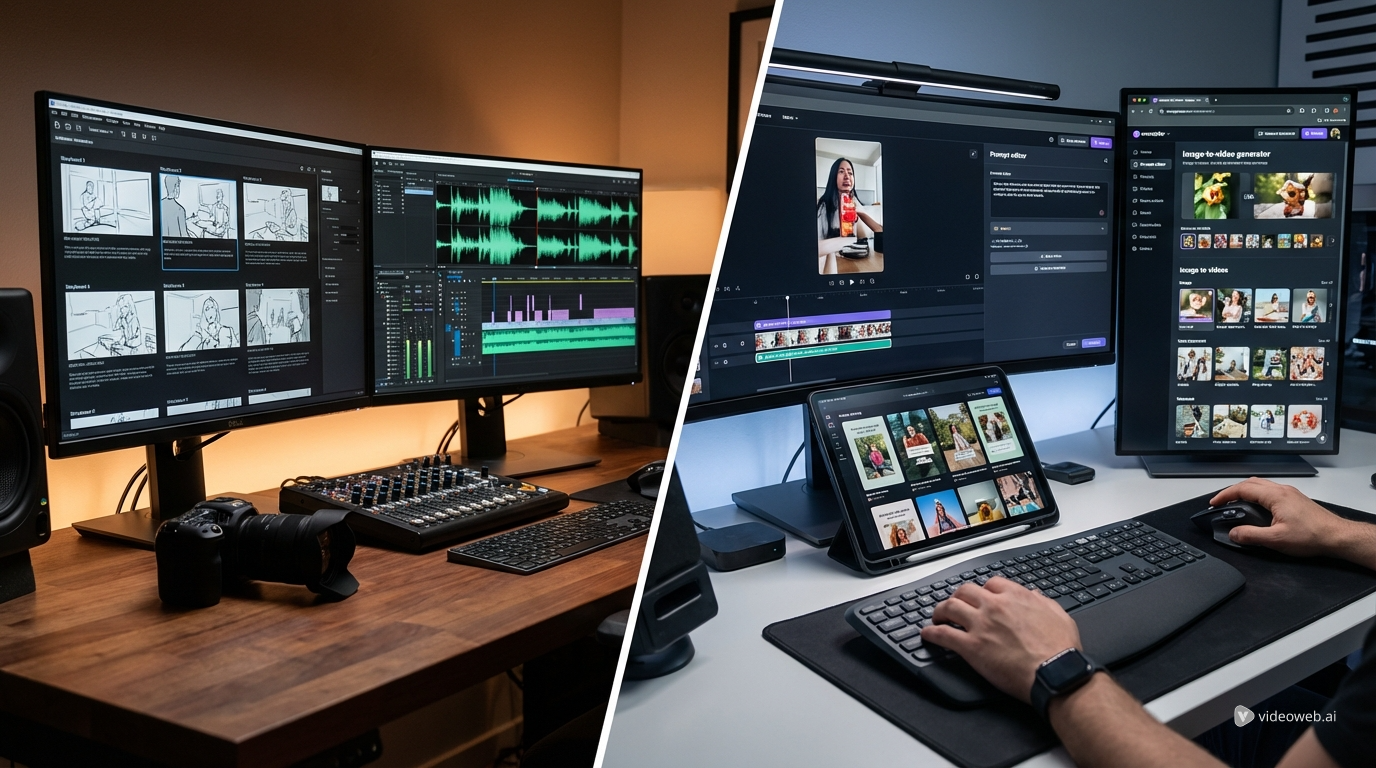
Once you have a strong output, repurpose it. A vertical clip can become a Reel, TikTok, Short, story post, or paid social hook. A horizontal version can work as a website hero, YouTube intro, product demo, or campaign concept. You can also crop the strongest frame as a thumbnail and use the animated version as the motion asset.
The smartest workflow is to keep notes. Record the image used, the prompt, the ratio, the duration, and what worked. Over time, you will learn which words create stable motion, which camera directions fit your style, and which audio descriptions match your brand. Happy Horse 1.0 is not just a one-click generator; used well, it becomes a fast testing space for visual ideas.
Detailed Prompt Examples
1. Product Launch Teaser
“Animate this product photo into a premium five-second ad shot. The camera slowly pushes toward the product while soft reflections move across the surface. Add subtle floating particles, clean studio lighting, and a luxury mood. Audio: soft cinematic pulse with a gentle sparkle sound at the end.”
2. Fashion Outfit Reveal
“Turn this fashion portrait into a stylish short video. The person makes a subtle turn toward the camera, the fabric moves naturally, and the background lights shift softly. Camera: slow vertical push-in. Style: clean editorial fashion, warm highlights, smooth motion. Audio: soft runway beat and light camera flash sound.”
3. AI Influencer Selfie Clip
“Animate this selfie into a natural creator-style video. The subject smiles slightly, looks into the camera, and tilts their head with relaxed confidence. Keep the face and outfit consistent. Background stays stable with gentle indoor light movement. Audio: soft room ambience and upbeat music.”
4. Cozy Café Short
“Create a cozy café video from this image. Steam rises from the drink, sunlight moves across the table, and the camera slowly pans from left to right. Keep the food and cup realistic. Style: warm lifestyle commercial, shallow depth of field. Audio: soft café ambience and gentle acoustic music.”
5. Travel Memory Clip
“Animate this travel photo into a cinematic memory. Wind gently moves through the subject’s hair and clothing, clouds drift slowly, and sunlight glows across the scene. Camera: slow push-in from a medium shot. Style: emotional travel vlog, realistic, soft film color. Audio: light wind and calm cinematic music.”
6. Dramatic Character Moment
“Create a dramatic close-up from this character image. The character looks away, then slowly turns toward the camera with a serious expression. Rain moves in the background, coat fabric reacts to wind, and the lighting feels moody. Camera: slow cinematic push-in. Audio: rain, distant thunder, low suspense music.”
Related Article
- Viral TikTok Dance Shorts with an AI Dance Video Generator
- Cleaner Images and Better Creative Workflows with Free Background Removal
- How to Turn Reference Images Into Better AI Prompts
- Controlled AI Videos with Motion Control
- Seedance 2.0 Access and Pricing Guide
People Also Read
- HappyHorse Video Editing Guide: Change Scenes, Styles, and Backgrounds With AI
- Happy Horse 1.0 vs Seedance 2.0: Which AI Video Model Is Better for Real Creative Work?
- HappyHorse Prompt Guide: How to Write Cinematic AI Video Prompts That Actually Work
- Practical AI Video Generator Guide for Text and Image Workflows
- Seedance 2.0 Prompt Tips for More Human, Realistic AI Video
- The 2026 Image-to-Video Guide: Best Models and Prompts
Final Recommendation: Other AIFacefy Tools to Try
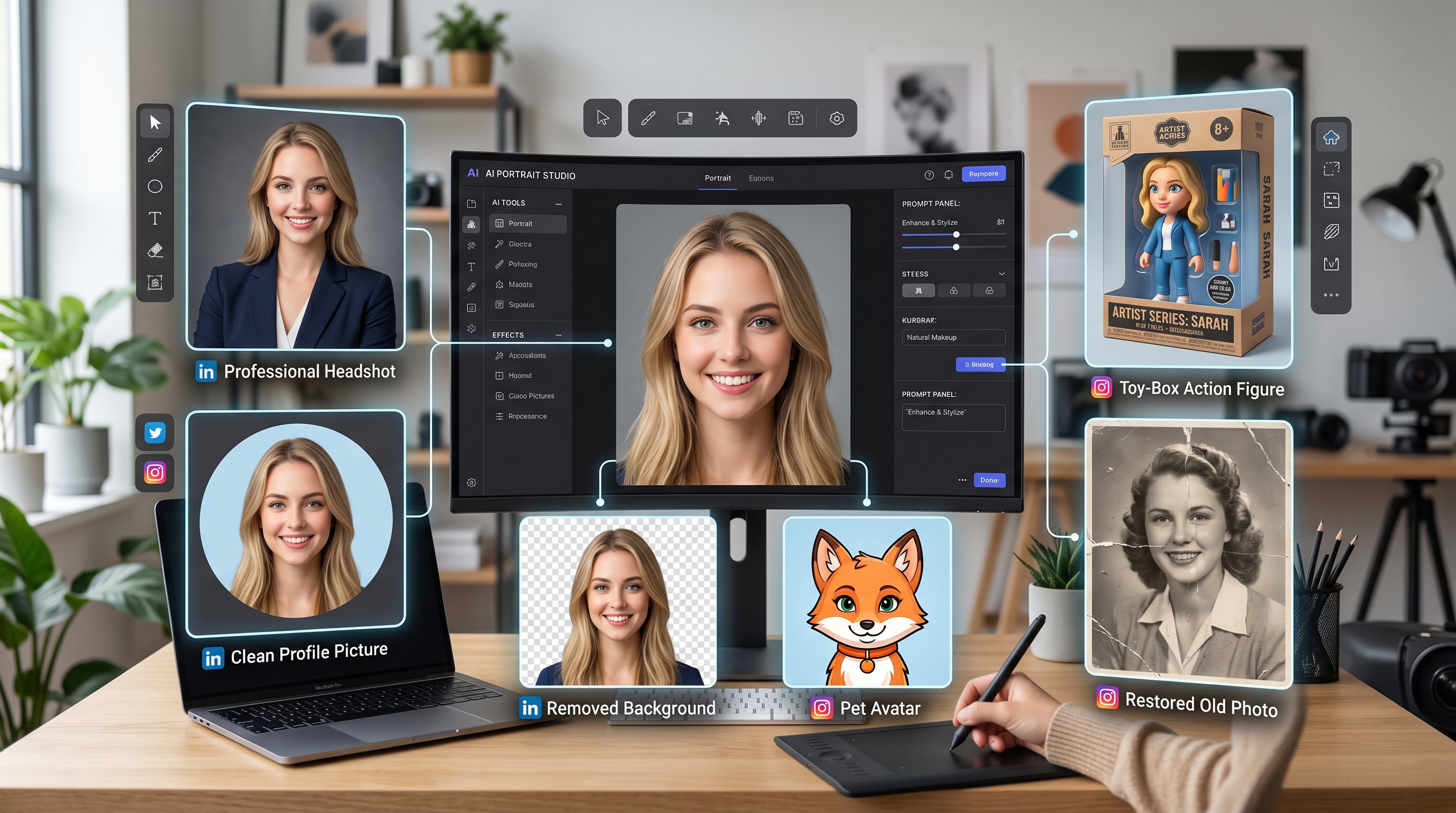
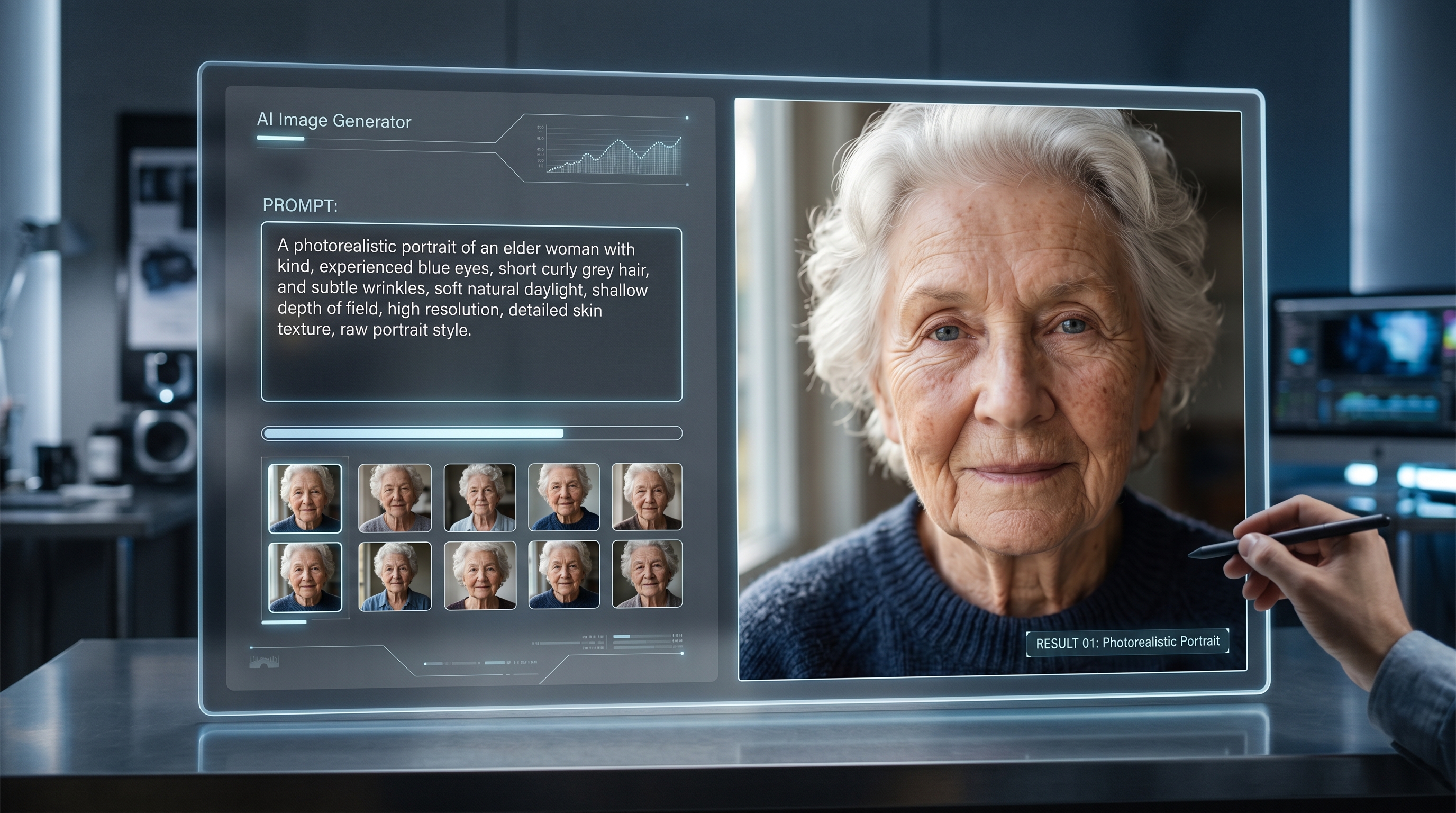
After testing Happy Horse 1.0, creators can build a fuller workflow with other AIFacefy tools. Use the AI Image Generator when you need a polished start frame before video generation. Try Image to Video or Photo to Video when you already have a visual asset and want to animate it. Use Text to Video when the idea starts as a written scene instead of an image.
For social content, the AI Dance Video Generator can help create viral-style movement clips, while Old Photo Animation works better for memory-style videos. For prep work, the AI Background Remover helps clean images before generation, and Image to Prompt can turn reference visuals into stronger prompt language. Together, these tools make AIFacefy useful not only for one AI video, but for a complete short-form creation process from image cleanup to final motion.