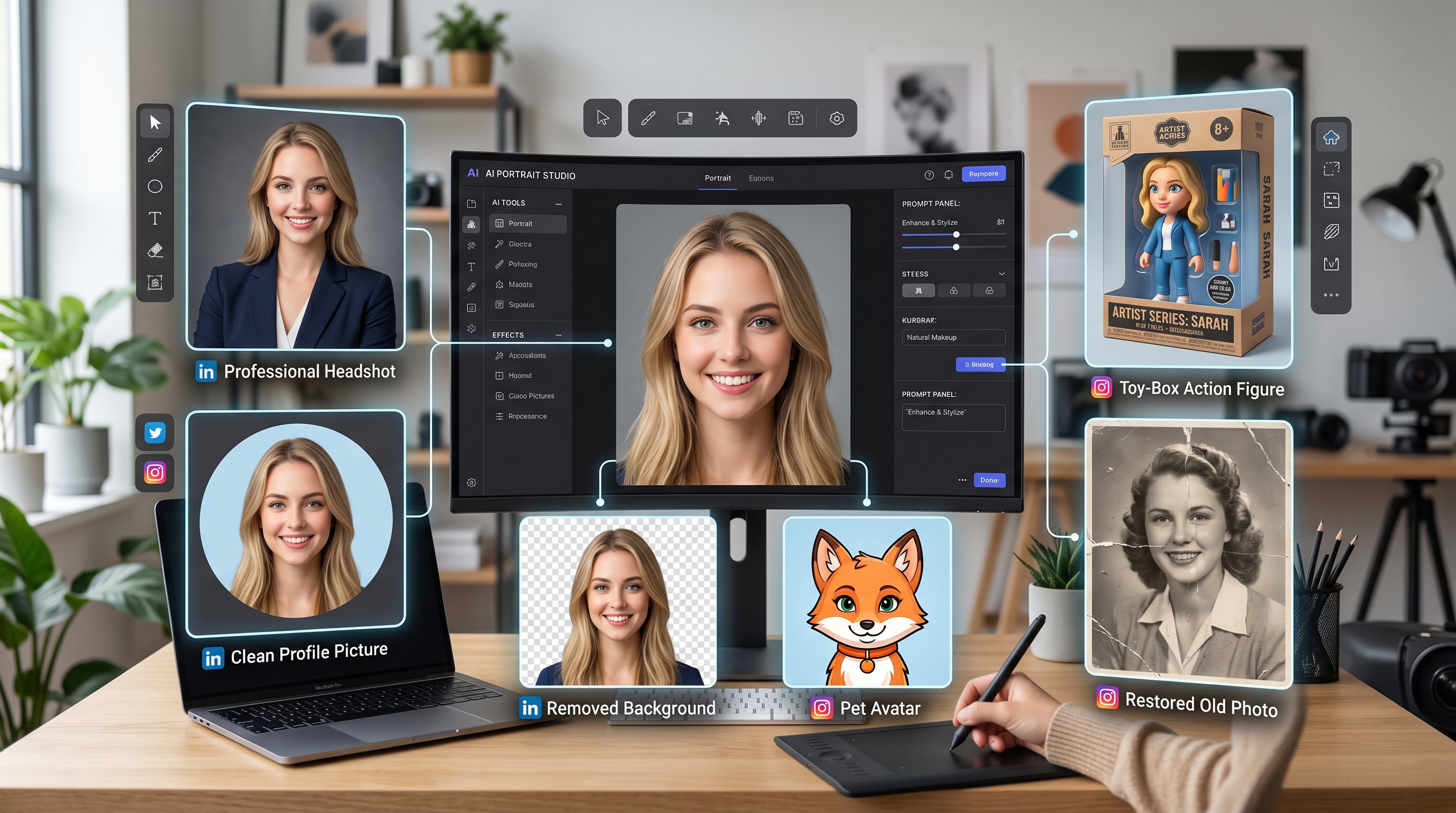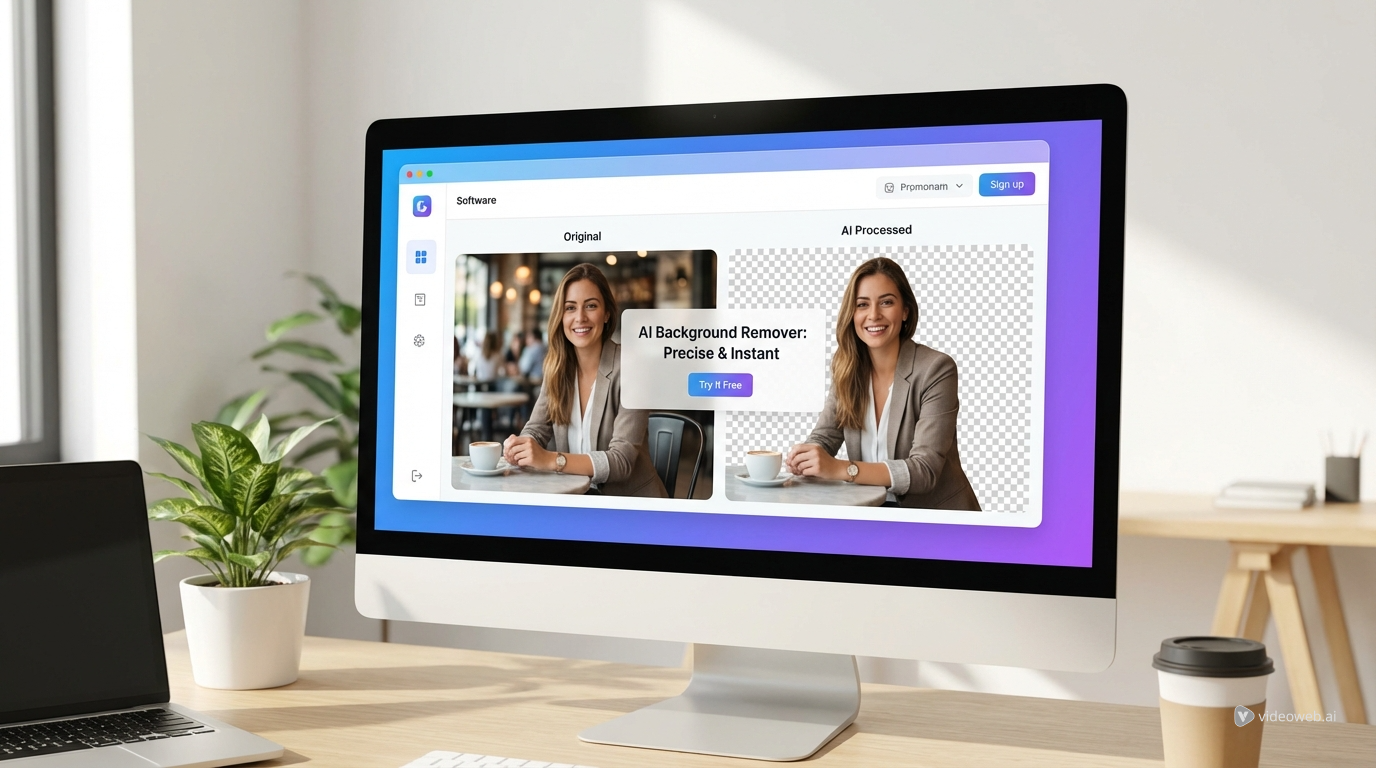
A clean cutout can do more than make an image look tidy. It can turn a cluttered product shot into a marketplace-ready asset, help a creator isolate a portrait for branding, or prepare a subject for prompt-based editing and generation. If you want that first step to be quick and accessible, AIFacefy’s free AI background remover is built for exactly that job.
Instead of opening complex editing software and tracing edges by hand, you can upload an image, let the tool identify the main subject, and download a cleaner version in just a few steps. For creators who want speed, convenience, and a browser-based workflow, a free online background remover like this is often the easiest place to start.
Why use an AI background remover in the browser?
Manual masking still has its place, but not every project needs a long editing session. In many everyday workflows, what matters most is getting a usable cutout fast. That is where a background remover online free tool becomes practical.
You do not need special software, advanced retouching skills, or much setup time. That makes it useful for e-commerce photos, social media graphics, profile images, fashion previews, thumbnails, and quick mockups. A good background remover AI workflow is not just about deleting a backdrop. It is about preparing an image for the next step, whether that means design, prompt extraction, image generation, or animation.
Step 1: Upload a clear image
Start by uploading the image you want to clean. The better the source image, the better the cutout usually looks. Clear subjects, readable lighting, and visible separation from the background tend to work best.
Portraits, products, and fashion shots are especially suitable for an image background remover free workflow. If the subject blends heavily into the background, or if the image is blurry and crowded, the tool may still work, but the edges may need more attention.
In general, choose an image where the main object is easy to identify. Hair, transparent objects, reflective surfaces, and tiny accessories are harder for any automated system, so a strong starting image gives you a much better chance of getting a clean result quickly.
Step 2: Let the tool remove the background
Once the file is uploaded, AIFacefy handles the subject detection and background removal automatically. This is the biggest advantage of an AI background remover free workflow: it takes care of the first pass without making you do detailed manual selection.
For many everyday uses, that first result is already enough. If you need a transparent PNG for a store listing, presentation deck, ad draft, or social asset, you may be ready to download it immediately. That is why a free image background remover can save so much time. It removes friction from the creative process and lets you move on faster.
Step 3: Check the cutout carefully
Before downloading, zoom in mentally on the edges. One-click tools are fast, but some details always deserve a second look. Hair, sleeves, shadows, product bases, and transparent materials are common problem areas.
When using a background remover free online, the smartest question is not “Is this perfect?” but “Is this good enough for the way I plan to use it?” A tiny edge issue might be invisible in a thumbnail, but more noticeable in a large campaign image.
That practical mindset helps you work faster. Save detailed cleanup for high-visibility assets. For drafts, mockups, and many everyday content needs, a clean enough result is often the right result.
Step 4: Use the cutout in real workflows
A subject without a background is much more flexible than the original photo. You can place it on a white backdrop, a transparent canvas, a branded layout, or a completely new scene. That makes a browser-based background remover online free tool useful for more than just cleanup.
For e-commerce, it helps prepare cleaner product images. For creators, it helps isolate portraits for banners and thumbnails. For fashion and beauty content, it helps separate the subject from the original environment before moving into a new composition.
It is also useful before prompt-based workflows. After removing the background, you can send the cleaned image into AIFacefy’s Image to Prompt tool and turn that visual into structured prompt language. That is helpful when you want to recreate the subject in another style, describe a look more accurately, or build a stronger prompt for generation.
Step 5: Know when the quick result is enough
A common mistake in editing is overworking simple assets. Not every image needs studio-grade masking. If the cutout looks clean at the size and context where it will actually appear, it may already be finished.
That is part of the value of a free online background remover. It favors speed and usability, which is exactly what many creators need. When you are testing layouts, publishing at volume, or building drafts, fast and clean often matters more than perfect.
Reserve extra cleanup for premium visuals, hero banners, or product images that will be shown large. For everything else, a strong automated result may already be the most efficient choice.
Step 6: Choose the right next tool or model
Once the background is gone, your next step depends on the goal. If you want to turn the cleaned image into a reusable description, AIFacefy’s Image to Prompt tool is the natural follow-up. If you want to create new visuals, AI Image Generator is the better next step. If you want motion, Image to Video and Photo to Video can carry the workflow further.
Model choice matters too. Nano Banana 2 is a good fit when you want flexible, reference-friendly image generation and editing after cleanup. Nano Banana Pro makes sense when you want higher-precision creative control. Seedream 5.0 is worth exploring for polished visual styling and more refined image outputs.
The best pattern is simple: remove the background first, decide whether you need a prompt, a still image, or motion, and then choose the tool or model that matches that next step.
Final thoughts
AIFacefy’s free background remover is most useful when you want a quick, browser-based way to isolate a subject and keep moving. It works well for many everyday image tasks, reduces editing friction, and fits naturally into larger creative workflows.
Use it for fast transparent cutouts, then build on the result. Once the image is clean, it becomes easier to turn into a prompt, a styled edit, a generated image, or even a short video concept. That is what makes background removal more than a utility step. It becomes the foundation for better creative work.
Recommended Tools
- AIFacefy AI Background Remover
- AIFacefy Image to Prompt
- AIFacefy AI Image Generator
- AIFacefy Image to Video
- AIFacefy Photo to Video
Recommended Models
Related Article
- How to Use AIFacefy’s AI Image Generator: Best Models Ranked + When to Use Each
- Nano Banana Pro Prompting in 2026: A Practical, Example-First Guide
- How to Use Seedream 4.5 on AIFacefy: Unlimited AI Image Generation Step by Step
- Google Nano Banana AI: The Next Era of AI Image Editing
People Also Read
- HeyDream AI Image Generator Guide: Best Models for Text-to-Image and Image-to-Image
- Seedream 5.0 AI Image Editor Guide
- How to Use Nano Banana 2 for AI Image Generation and Editing
- Nano Banana Pro on DreamMachine AI: A Practical Way to Create Better AI Images
- Nano Banana 2 vs Seedream 5.0: A Practical Comparison Guide