If you’ve tried a few image generators and felt like you spend more time fighting limits than exploring ideas, this guide is for you. seedream 4.5 AI image generation on AIFacefy is built for fast experimentation: write a prompt, pick an aspect ratio, choose a higher resolution when you need it, and iterate until the image feels right—without turning creativity into a “credit management” problem.
In this how-to article, I’ll walk you through the interface, show you how to write prompts that actually work, and share a repeatable workflow you can use for realistic portraits, product visuals, concept art, and social-ready images. Everything here is beginner-friendly, but still useful if you already know the basics and want better consistency.
What Is Seedream 4.5 and What Makes It Different?
Think of seedream 4.5 AI as a modern AI image model focused on clean results, solid prompt interpretation, and flexible styling. The “magic” isn’t just that it can draw anything you describe—it’s that it can understand what you mean when you describe it with the right level of detail.
Seedream 4.5 is especially useful when you want:
- Readable composition (subjects don’t melt into the background)
- Better lighting and mood control (cinematic, soft daylight, studio, etc.)
- Style flexibility (realistic, illustrated, editorial, fantasy, minimalist product shots)
- Fast iteration (generate, refine, repeat until it’s right)
If your goal is to build a visual direction quickly—whether for content, marketing, or pure creativity—Seedream 4.5 is a strong pick.
Open the Tool and Get Oriented in the AIFacefy Interface
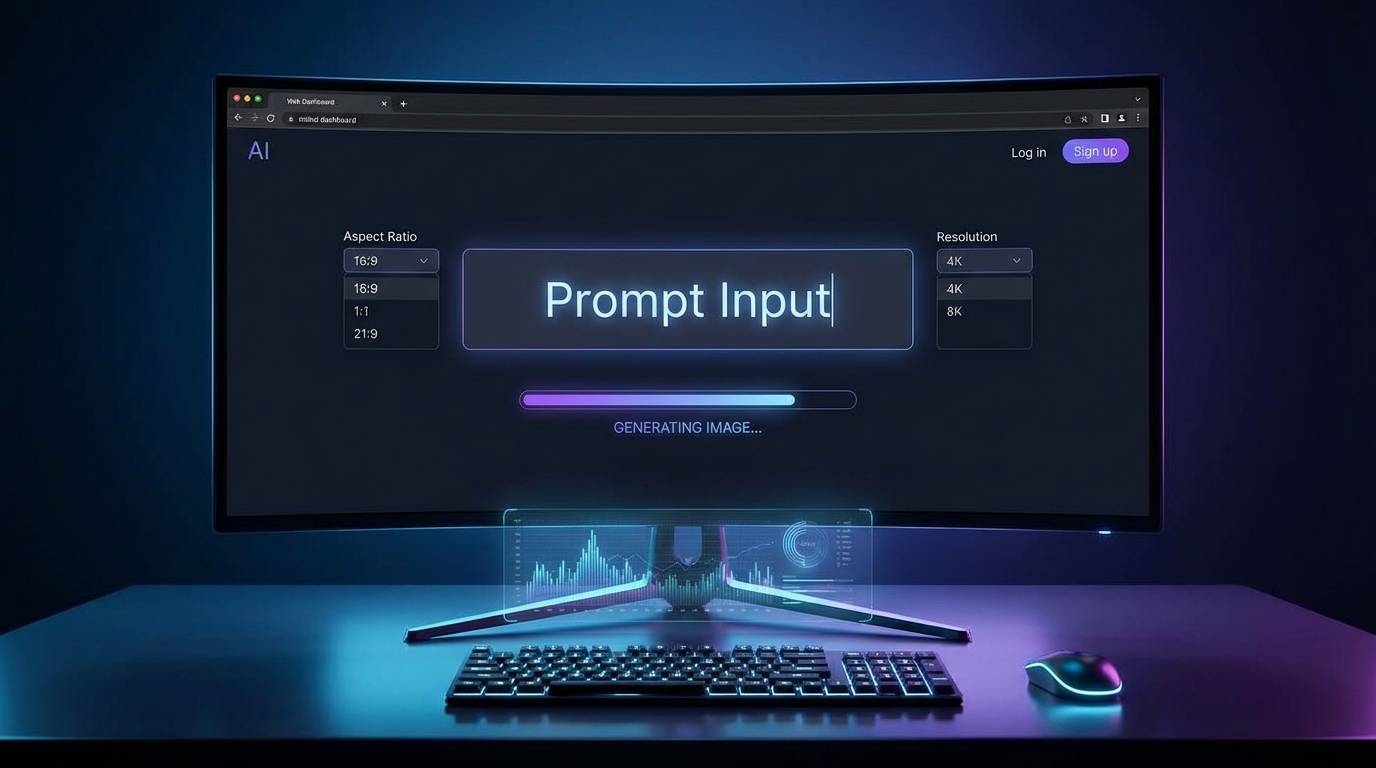
Before you generate anything, take one minute to understand the controls inside the seedream 4.5 image generator page. The layout is simple, but each piece matters:
- Prompt box: where you describe what you want
- Translate toggle: helpful if you draft prompts in another language and want clean English output
- Optimize Prompt: an optional enhancer that can polish prompt structure
- Image Upload: for reference-based generation (optional)
- Ratio: your aspect ratio (16:9, 1:1, etc.)
- Resolution: output size (for example, 2K when you want more detail)
- Public toggle: whether your generation is public (use based on preference)
- Generate button: creates the image
A quick checklist before generating:
- Choose your ratio for the platform you’re targeting
- Pick a resolution that matches your needs (draft vs final)
- Write a prompt that includes subject + setting + style + lighting
- Generate, then refine based on what you see
Seedream 4.5 AI Image Generator Basics: Your First Text Prompt
The biggest difference between “random output” and “usable output” is prompt clarity. With the seedream 4.5 ai image generator, you’ll get better results when your prompt has structure.
Here’s a simple prompt formula that works well:
Subject + Setting + Style + Lighting + Camera + Details + Constraints
Three starter prompt templates (copy/paste)
1) Realistic portrait
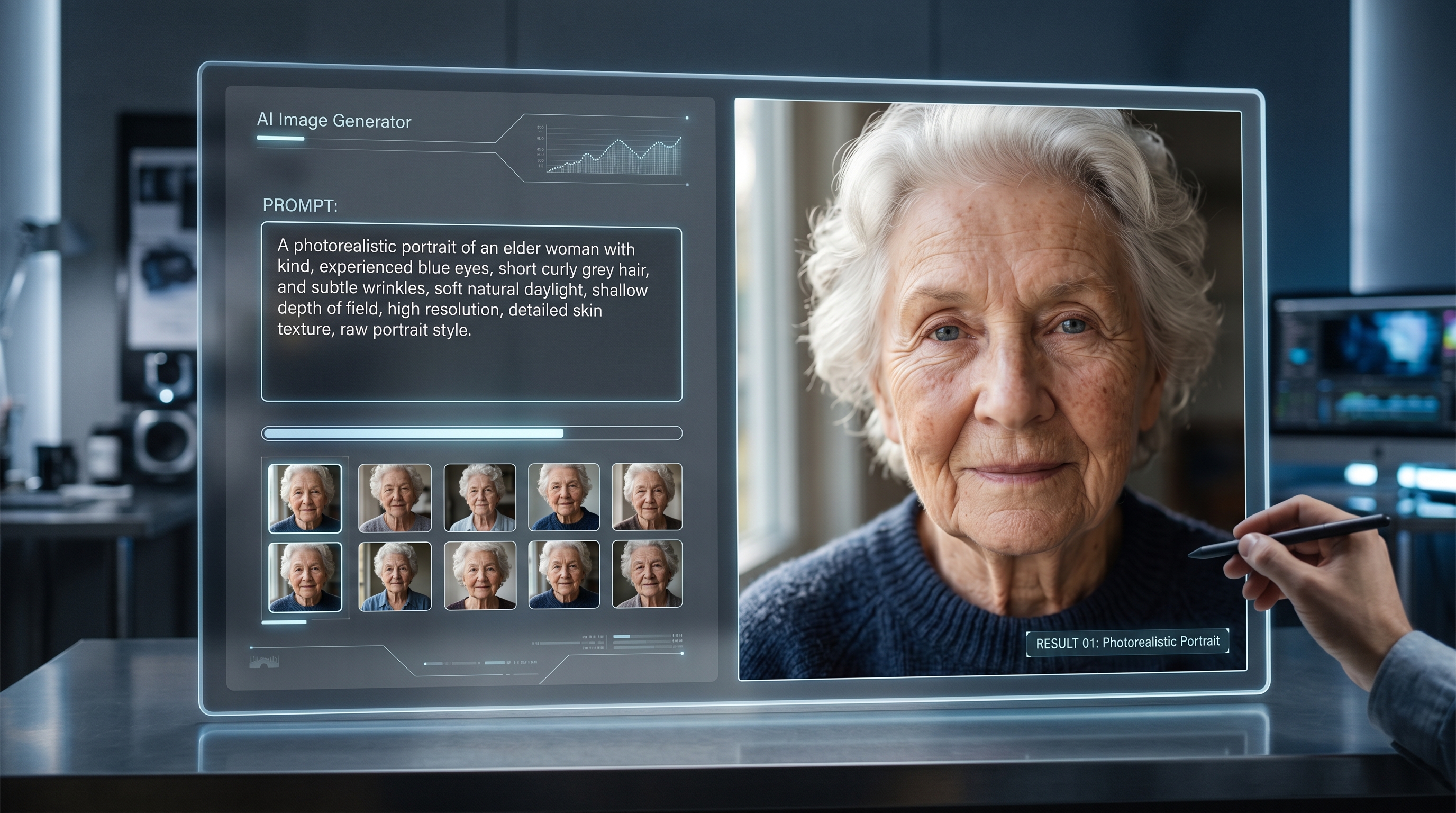
A cinematic portrait of a young woman in a dark studio, soft rim lighting, 85mm lens, shallow depth of field, realistic photography, sharp focus, natural skin texture, neutral background, no text, no watermark
2) Illustration / concept art
A fantasy illustration of a floating library above the clouds, warm sunrise light, painterly brush strokes, high detail, wide composition, dramatic atmosphere, no text, no watermark
3) Product-style image
Minimalist product photo of a matte black smartwatch on a clean white surface, soft studio lighting, realistic, high detail, gentle shadow, editorial style, no text, no watermark
Common beginner mistakes (and how to fix them)
- Too vague (“cool warrior”) → add setting, lighting, and style
- Conflicting styles (“anime + photorealistic + watercolor”) → pick one main style
- No constraints → add “no text, no watermark” to reduce artifacts
How to Generate Images for Free (and When “Free” Matters)
Many people search for seedream 4.5 ai image generator free because they want to explore without commitment. And honestly, that’s the right mindset.
“Free” matters most when you’re doing early-stage creative work:
- testing prompt ideas
- exploring styles
- building a mood board
- trying 10 variations of one concept
A practical tip: do your first passes at a normal resolution and only switch to higher resolution when you find a direction worth keeping. That way, you stay fast and efficient.
Unlimited Iteration Workflow: Create Variations Until It’s Perfect
The real advantage of seedream 4.5 unlimited image generation is that you can iterate like a real creative professional. In design, your first draft is rarely the final. AI image generation should work the same way.
Here’s a workflow that feels natural:
- Generate a baseline (a “draft”)
- Identify what’s close (lighting? pose? mood?)
- Change one variable at a time
- Compare versions
- Commit to the best direction
Variation strategies that work
- Lock the subject, change lighting: “soft daylight” → “dramatic studio”
- Lock the setting, change style: “editorial photo” → “illustration”
- Lock the style, change composition: “close-up portrait” → “wide shot”
If you want a simple challenge that improves results fast: generate 10 versions of one prompt where you only change one line (lighting or lens). You’ll feel the control immediately.
“No Limit” Prompt Testing: Stress-Test Ideas Without Credit Anxiety
If you want to learn quickly, treat seedream 4.5 no limit image generation like a prompt lab. Your job isn’t to get the perfect image in one try—your job is to discover what wording produces the look you want.
Try a quick A/B prompt test:
- Prompt A: “soft natural window light, cozy atmosphere”
- Prompt B: “cinematic low-key lighting, dramatic shadows”
Or test composition:
- “centered composition, clean background”
- “dynamic angle, foreground blur, depth layering”
A simple testing matrix:
- Style: realistic / illustrated
- Lighting: daylight / studio / cinematic
- Composition: close-up / medium / wide
That’s 18 combinations you can explore quickly, and it builds prompt intuition fast.
Text-to-Image Mode: Choosing Ratio and Resolution for Each Platform
The seedream 4.5 text to image workflow becomes much easier when you choose the right shape for the job.
Ratio (aspect ratio) quick guide
- 16:9: YouTube thumbnails, banners, wide scenes
- 1:1: square posts, icon-style images
- 4:5: Instagram feed posts (tall, high engagement)
- 9:16: Shorts, Reels, TikTok, mobile-first visuals
Resolution tips (including 2K)
If you’re generating a draft, standard resolution is usually fine. When you want:
- crisp detail for faces
- clean product edges
- high-quality blog headers
- sharper textures
…switch to a higher resolution (like 2K) and regenerate the best prompt version.
Advanced Text-to-Image AI Tips: Translate + Optimize Prompt Features
This is where seedream 4.5 text to image ai can feel especially friendly.
When Translate helps
If you think in another language first, you can draft naturally and use Translate to produce cleaner English prompts. This matters because many AI image models respond best to structured English descriptors (style, camera, lighting, materials).
How to use Optimize Prompt without losing your intent
Optimize Prompt can help you:
- clarify structure
- add missing descriptive glue
- produce more consistent phrasing
But don’t let it overwrite your creative goal. A good habit:
- Write your own prompt
- Optimize it
- Compare
- Keep the parts that improve clarity, remove the parts that change meaning
Add constraints to reduce artifacts
These small lines often improve results:
- “no text, no watermark”
- “no extra limbs, no distorted hands”
- “sharp focus, high detail”
- “clean background” (for product shots)
Optional: Image Upload Workflow (Reference, Style, or Rework)
If you want more control, Image Upload is useful for:
- pose reference (keep body language consistent)
- style reference (match a vibe)
- layout reference (product placement, composition)
Pair it with a text prompt that clearly states what to keep and what to change. For example:
Keep the composition and pose from the reference image, change the outfit to a modern black suit, cinematic studio lighting, realistic photography, no text, no watermark
This combination is powerful when you’re trying to maintain consistency across a series.
Troubleshooting: Fix Common Quality Problems Fast
When something looks “off,” don’t panic—adjust the prompt in a targeted way.
Problem: Face looks weird or inconsistent
Fix: add “realistic photography, sharp focus, natural skin texture, soft lighting, 85mm lens”
Problem: Hands look distorted
Fix: avoid hand emphasis, change pose, add “hands not visible” or “hands relaxed, natural anatomy”
Problem: Image feels random
Fix: specify composition (“centered subject”), setting, and background details
Problem: Style doesn’t match your intent
Fix: remove competing style words and pick one clear style anchor (editorial, cinematic, watercolor, flat illustration)
Conclusion: A Simple Repeatable Workflow for Better Results
Seedream 4.5 on AIFacefy is at its best when you treat it like a creative studio: draft, refine, compare, and repeat. With seedream 4.5 ai image generation, you can move from vague ideas to polished visuals quickly—especially when you combine structured prompts with smart ratio and resolution choices.
Start simple:
- pick a ratio
- write a clear prompt
- generate a baseline
- change one variable at a time
Do that for 15 minutes and you’ll not only get better images—you’ll also build the prompt intuition that makes AI image generation genuinely fun and useful.