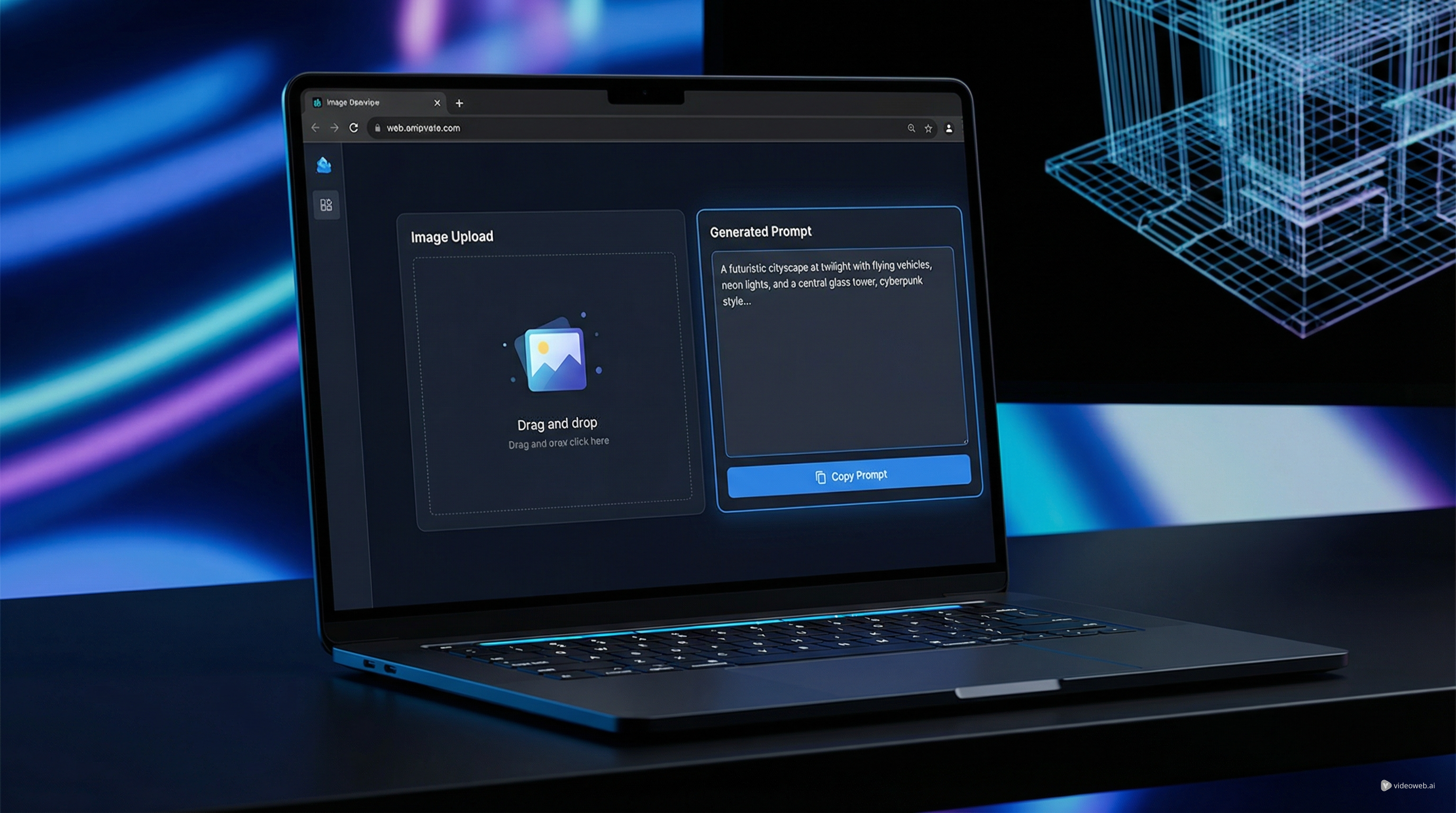
If you have ever saved an image because you liked the look, mood, styling, or composition but could not explain it clearly in words, AIFacefy’s free image to prompt AI tool is built for that exact situation. Instead of describing everything from scratch, you can upload a reference image and let the tool translate visual information into usable prompt text.
That matters because image generation often starts with language, but inspiration usually starts with visuals. You may know that you want soft lighting, cinematic framing, editorial fashion styling, a dreamy color palette, or a polished product-shot feel. The hard part is turning those visual impressions into prompt language that actually works. A strong AI image prompt helps bridge that gap.
Why use an image-to-prompt tool at all?
Many creators are much better at spotting good visuals than describing them. You can instantly tell when an image feels premium, minimal, dramatic, romantic, or commercial, but writing a clean prompt from zero is another skill. That is why an image prompt generator can be genuinely useful.
It speeds up ideation, gives you a clearer starting structure, and makes it easier to study how successful visuals are built. It is especially practical for moodboards, portrait references, fashion concepts, marketing images, and style analysis. Instead of guessing which words might recreate the look, you begin with language extracted from the image itself.
For beginners, this reduces the pressure of prompt writing. For more experienced users, it saves time and makes iteration faster.
Step 1: Upload a clear reference image
Start by opening the tool and uploading an image with a clear subject and readable details. In most cases, the best source images are the ones with visible lighting, distinct styling, and a composition that is easy to understand.
Portraits, editorial shots, product photos, concept art, fashion references, and clean cinematic stills usually work well. A very cluttered image can still generate useful text, but the result may include extra background details that are not central to your goal.
If you already know what you want to extract, choose the image accordingly. If you care most about style, upload a visually strong image that clearly shows the look you want. If you care most about subject recreation, choose an image where the outfit, pose, expression, and environment are easy to read.
A better source image usually leads to a better image to prompt generator result.
Step 2: Choose the output mode that fits your workflow
One useful part of AIFacefy’s interface is that it does not force every prompt into the same format. The tool lets you choose different output modes, including Flux, Midjourney, Stable Diffusion, and Universal.
This matters because different models often respond better to different prompt styles. Some prefer cleaner descriptive language. Others benefit from more stylized wording. A more general output can also be helpful when you want to reuse the result across platforms.
That means the tool is not only extracting text from an image. It is helping shape that text into a more practical AI image prompt for the kind of generator you want to use next.
If you are not sure which option to choose, start with Universal. It gives you a flexible draft that can be edited later for a specific model.
Step 3: Generate the prompt and treat it like a working draft
Once the image is uploaded and the output type is selected, generate the prompt and read the result carefully. The biggest mistake is assuming the output is already perfect. In reality, the best way to use an image to prompt AI tool is to treat the output as a first draft.
A useful generated prompt usually identifies the subject, environment, style cues, lighting conditions, materials, color mood, and composition. That already gives you something much more structured than a blank page.
For example, a portrait image might produce phrases related to soft studio lighting, natural skin texture, close-up framing, neutral tones, or editorial beauty styling. A product shot might surface clean background language, glossy materials, premium packaging, or commercial photography cues. A fantasy image might emphasize atmosphere, glow, painterly textures, and dynamic composition.
The point is not to accept every word automatically. The point is to capture the strongest descriptive elements quickly.
Step 4: Clean up the result before using it
Prompt generators are fast, but cleanup is still where quality improves. Remove inaccurate details, trim repeated adjectives, and keep the words that matter most to your specific goal.
A simple method works well:
- Delete anything obviously wrong.
- Keep the most useful subject and style descriptors.
- Remove filler phrases that do not change the image.
- Add any missing detail you personally care about.
- Rewrite the structure to match your target model.
This is where an image prompt generator becomes more powerful than a novelty tool. It gives you a structured base, but your editing choices turn that base into a better final prompt.
If you want cleaner commercial outputs, keep the language direct. If you want more artistic results, you can leave more stylistic texture in the prompt. If you want to compare models, save one edited version for each workflow instead of forcing one universal text to do everything.
Step 5: Use one reference image for multiple creative directions
One of the best uses of an image to prompt generator is that it lets one visual reference become several prompt variations. The same image can be turned into a straightforward commercial prompt, a more stylized concept prompt, or a simplified reusable base prompt.
That is valuable for experimentation. You can upload one fashion image, extract the key styling language, then adapt it into different outputs for different generators. You can do the same with product shots, portraits, or design references.
This also makes the tool useful for studying visual logic. Instead of only admiring an image, you begin to break it down into components you can actually reuse: subject, lighting, lens feel, styling, palette, atmosphere, and composition.
That habit improves prompting even when you are no longer relying on automation.
Step 6: Know the limits of image-to-prompt conversion
As helpful as it is, no image to prompt AI tool can fully understand your creative intent. It may describe details you do not care about, miss a subtle emotional priority, or focus too much on background information when you really care about the styling.
That is normal. These tools are best used as collaborators, not replacements for direction. They help you find wording faster, but they still depend on your judgment.
A good rule is simple: use the tool to discover prompt language, then use your own eye to decide what actually matters.
Final thoughts
AIFacefy’s free image-to-prompt converter is most useful when you want to move from visual inspiration to workable text without struggling through the first draft alone. It helps transform reference images into prompt material, makes prompt writing easier to start, and gives you a more structured path into image generation.
If you regularly save images for inspiration, this tool can help you do more than collect references. It helps you translate them into something reusable. Upload the image, generate the first draft, clean it up, and use the result as a better foundation for your next creative workflow.
Recommended Tools
- AIFacefy Image to Prompt for turning visual references into prompt drafts.
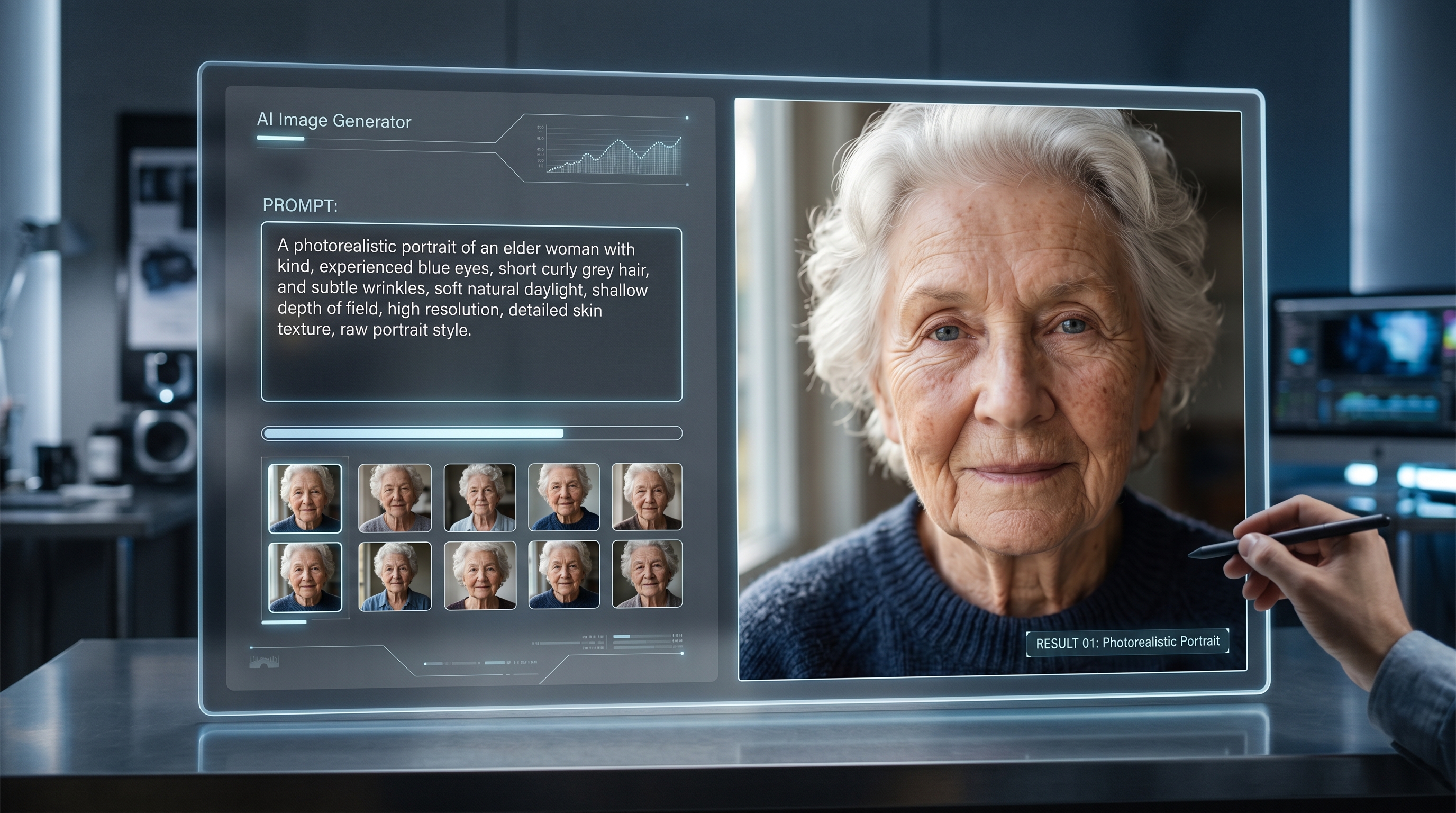
- AIFacefy AI Image Generator for using those prompts in direct image creation.
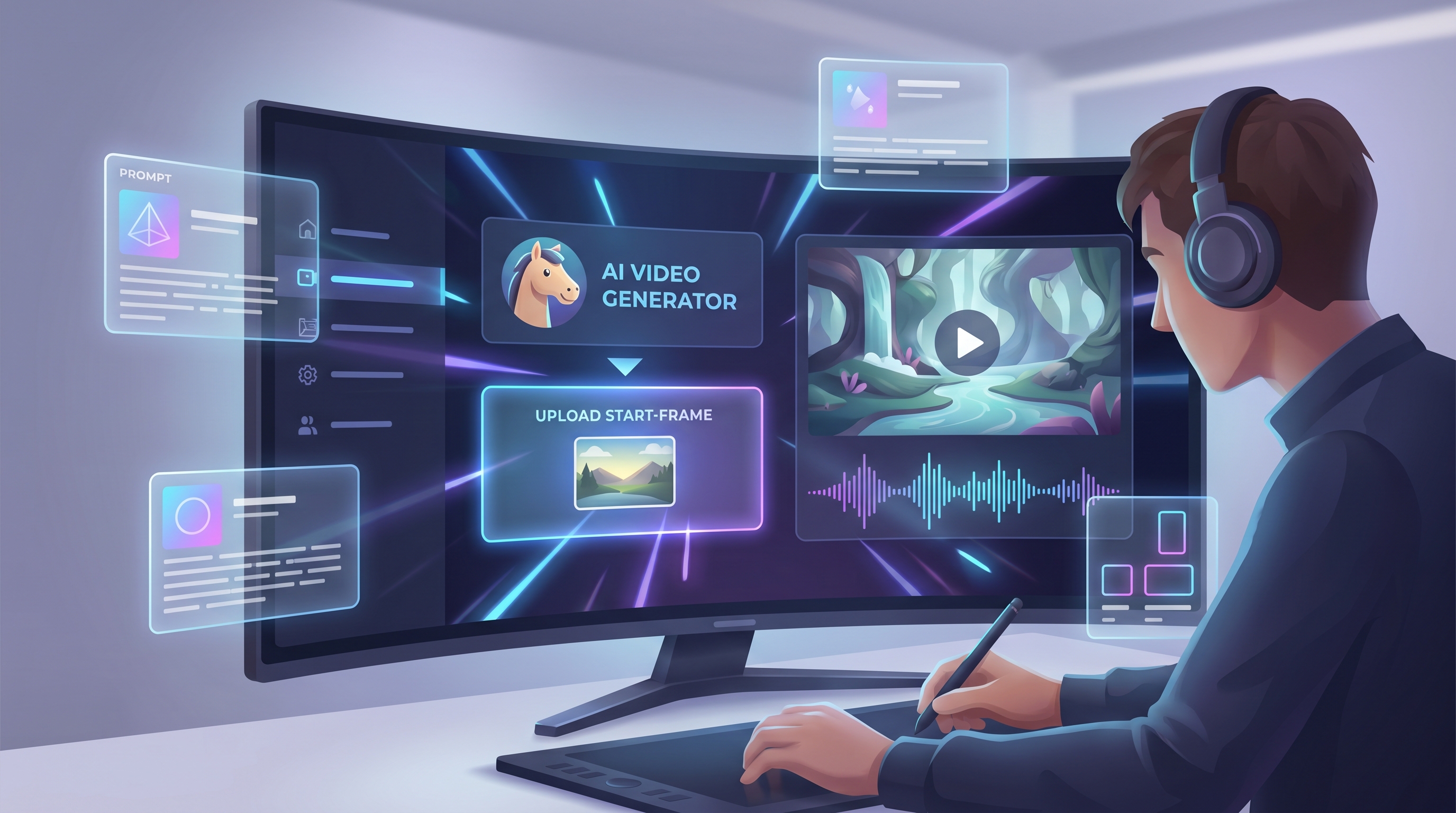
- AIFacefy Image to Video for extending still-image ideas into motion.
- AIFacefy Photo to Video for animation-style follow-up workflows.
- AIFacefy Text to Video if you want to expand prompt-based ideas into video concepts.
Related Article
- AIFacefy AI Image Generator 2026: Best Models, Costs & Prompts
- Nano Banana Pro Prompting in 2026: A Practical, Example-First Guide
- How to Use Seedream 4.5 on AIFacefy: Unlimited AI Image Generation Step by Step
- How to Use AI to Animate Photos and Bring Memories to Life
People Also Read
- Free AI Image to Prompt Generator: Describe Images for Prompt
- HeyDream AI Image Generator Guide: Best Models for Text-to-Image and Image-to-Image
- Nano Banana Pro on DreamMachine AI: A Practical Way to Create Better AI Images
- How to Use Nano Banana 2 for AI Image Generation and Editing
- How to Use Sea Imagine AI’s Image Generator: A Beginner-Friendly Tutorial